If you would like your event or footage removed from Dance Chives and you are not the current page owner, please or email support@dancechives.com with the subject "Remove Event". In the body include a link of the event or section page with footage to remove and your role in the event (organizer, videographer).
Go to the event page for which you want to request ownership. Make sure you are logged into your account. If you need to create an account, you can do so here.

Click the "Request Ownership" button at the bottom of the event page. A dialog will appear asking you to confirm your request.
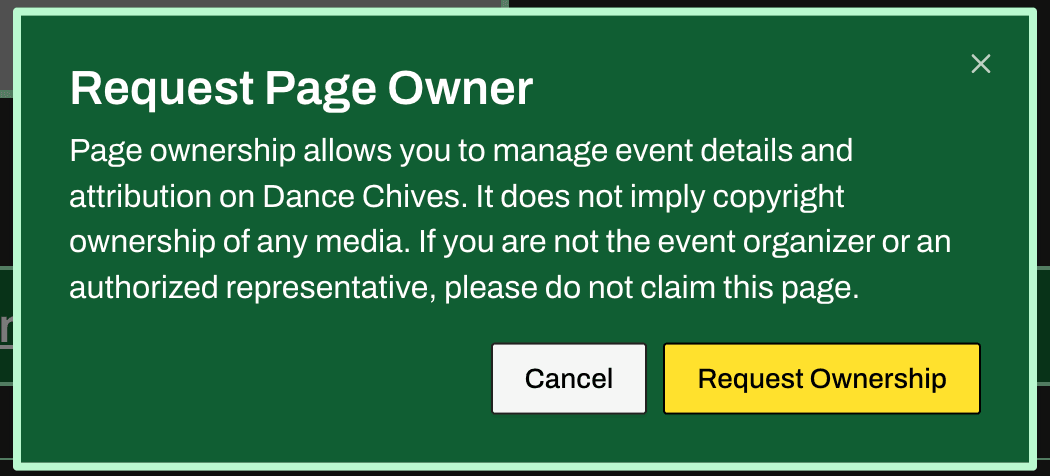
Submit your ownership request. The current event owner or administrators will review your request. You will receive a notification on your profile once your request has been approved or denied. You can see the status of your request on the dashboard.
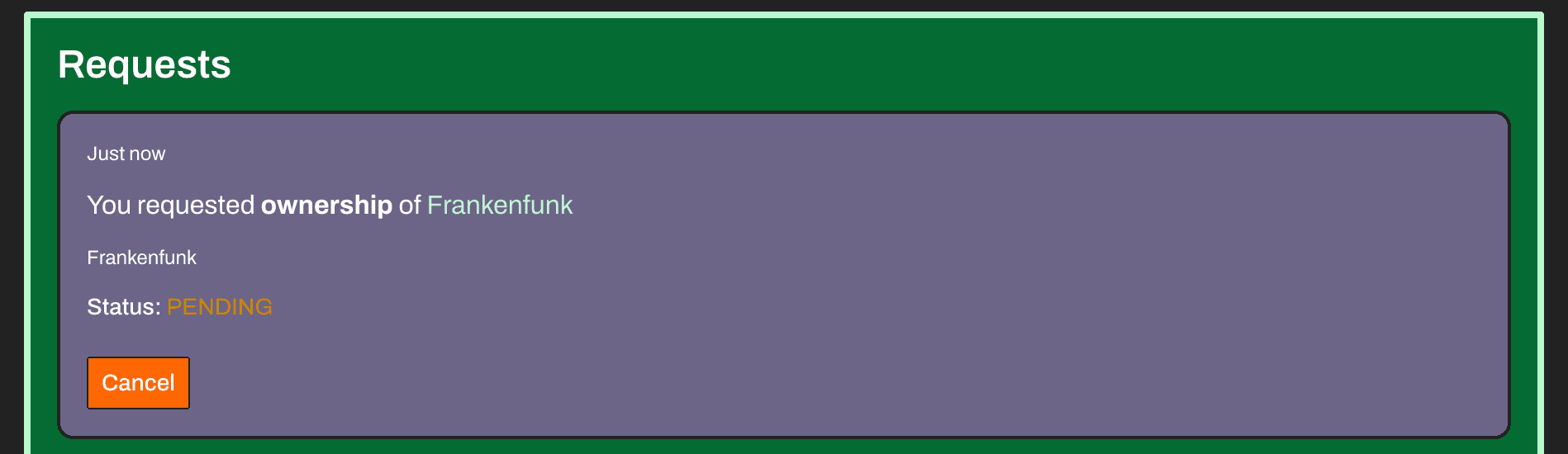
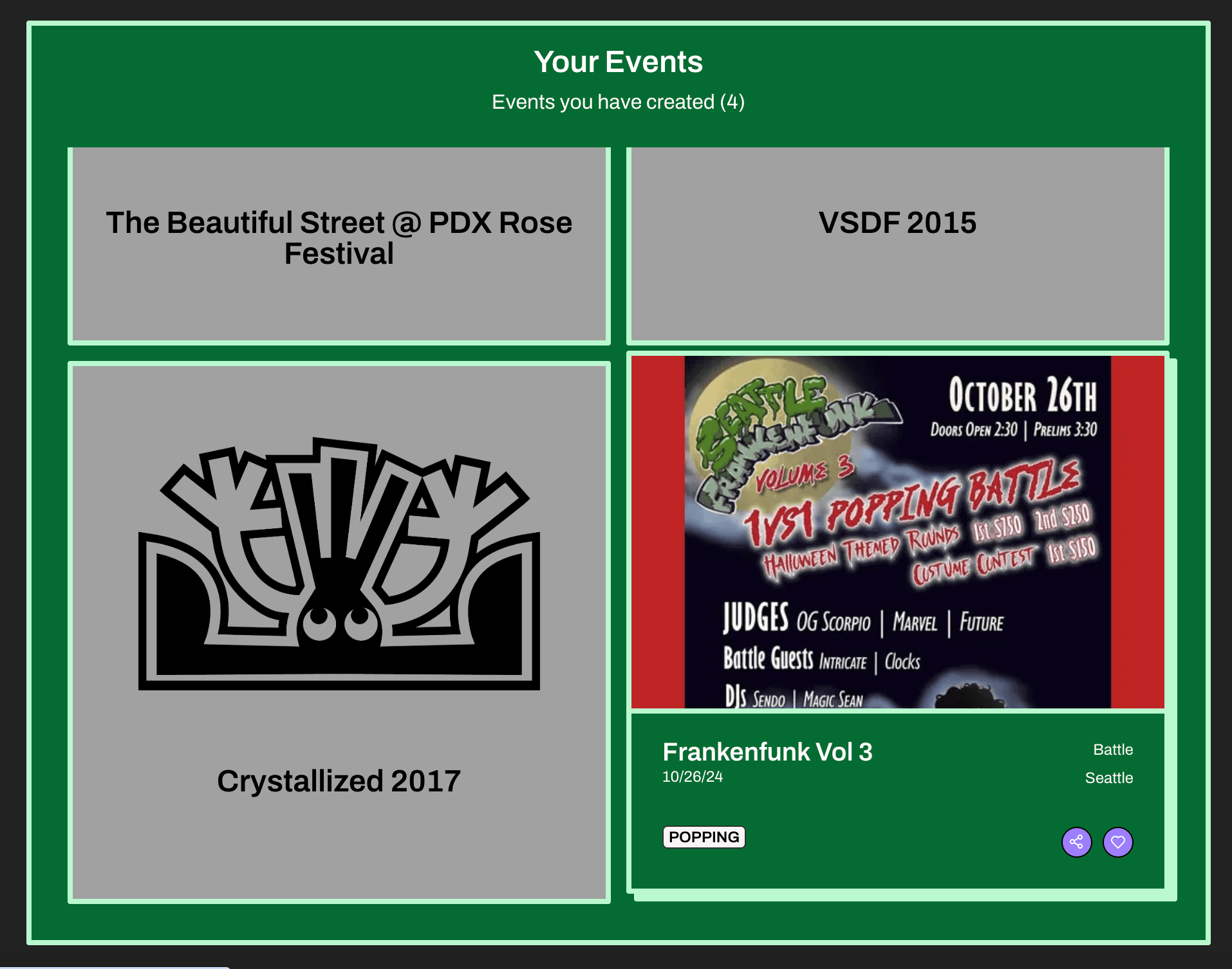
Once your request has been approved, you will be able to manage the event details and attribution on Dance Chives. Go to your dashboard and click on the event you want to manage. For help on how to manage the event, see the Event Management page.
Team members are users who have been granted edit access to help manage an event on Dance Chives. They work alongside the event owner to maintain event details, manage roles, and keep the event information up to date. Team members are separate from event roles and are specifically designated to help with event management.
Team members have access to edit event features. This is accessed by clicking the button at the bottom of the event page.
Team members can also approve or deny role tagging requests from other users. You'll be notified when you have a request to review and it can be accessed on your dashboard.
However, team members cannot: access the event settings page, hide or unhide the event, transfer event ownership, delete the event, or add or remove other team members.
To request team membership for an event:
Note: If you are the event owner or already a team member, you will not see the request button. Event owners already have full access to manage their events.
If you no longer wish to be a team member of an event, you can remove yourself at any time. On the event page, find your avatar in the Team Members section. Click the remove button (X) that appears on your own avatar. You will immediately lose access to manage the event.
As the event owner, you can remove team members at any time. To remove a team member, go to your event's settings page (accessible by clicking the button on the bottom of the event page) and navigate to the "Team Members" section. Click the remove button (X) next to the team member you want to remove. They will immediately lose access to manage the event. Note: Only the event owner can access the settings page and remove team members.